

Introducing the FireBoard Ring, our first Drive-enabled appliance.
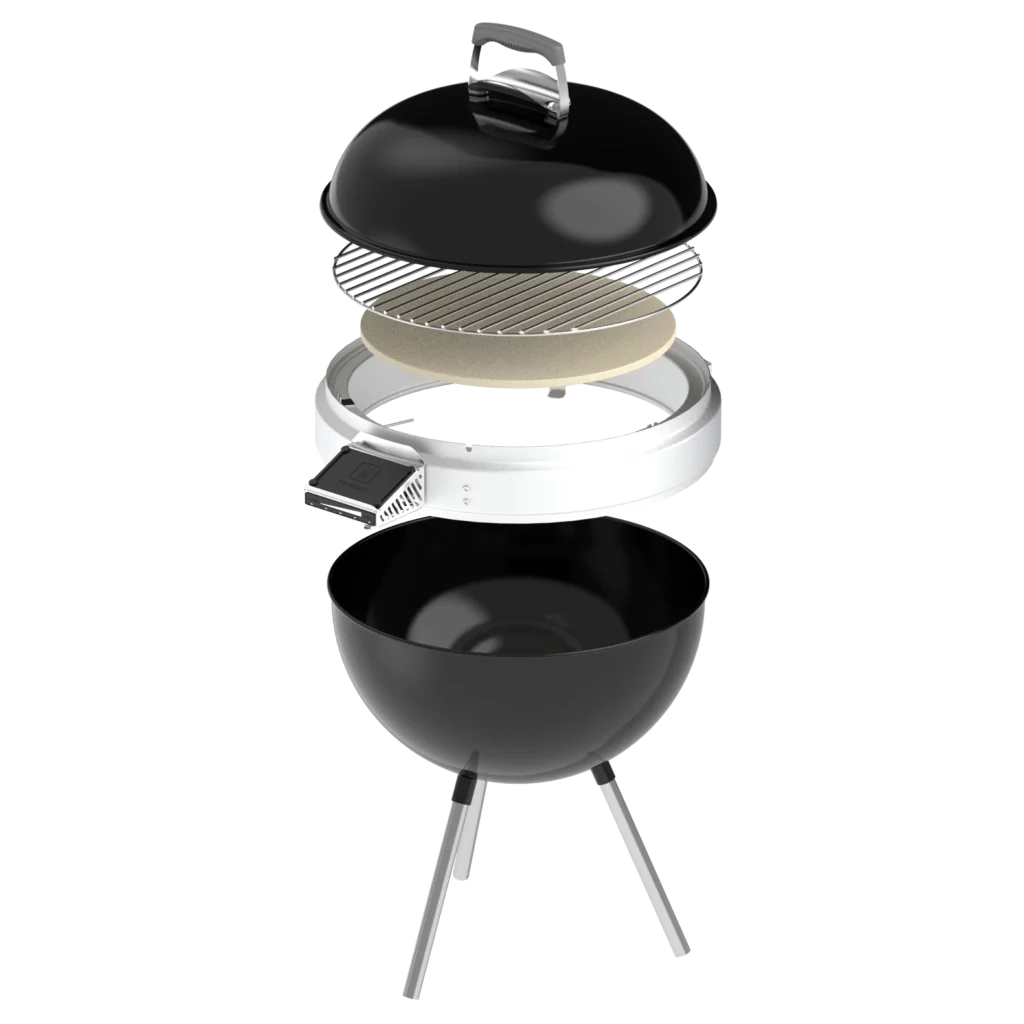
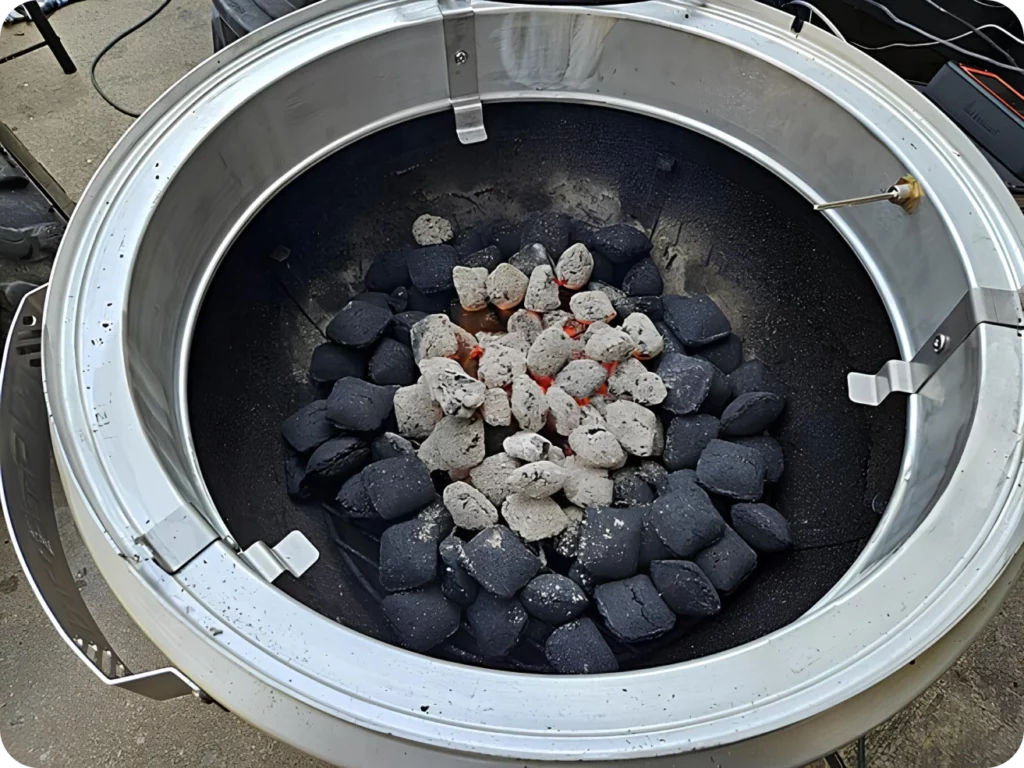
Designed for use with 22″ Weber kettle grills paired with a Drive-enabled FireBoard device, the FireBoard Ring enables your kettle to do more than ever before.
HOW IT WORKS
Drive-powered fan control using radial air flow distribution
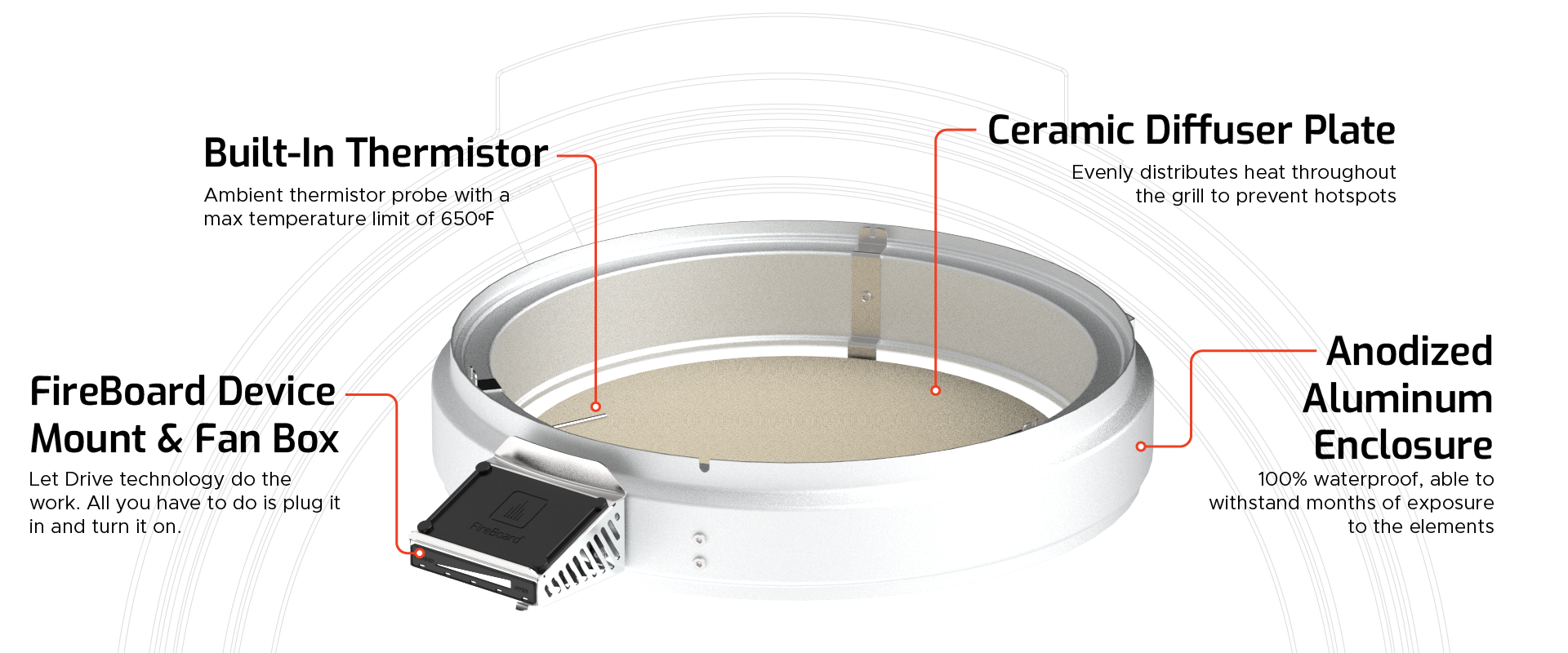
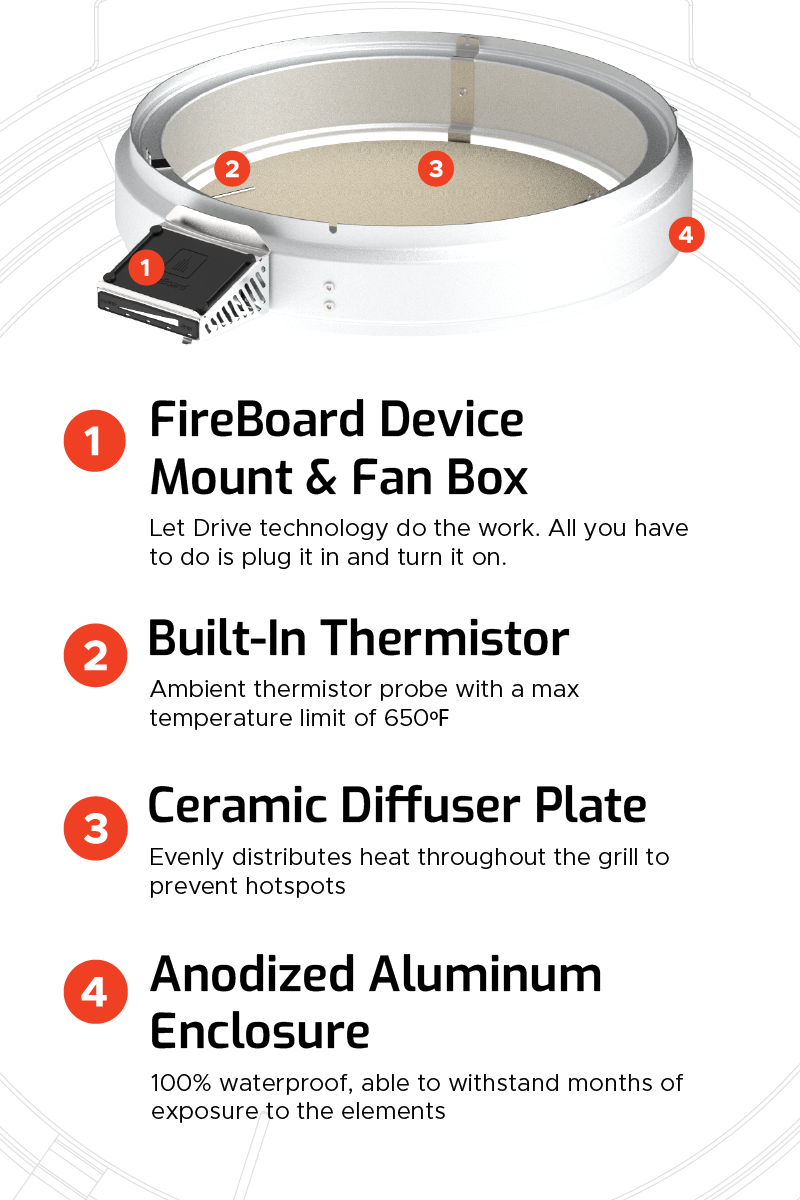
FireBoard Ring connects to a Drive-enabled FireBoard device to distribute air flow throughout its circular enclosure. Then, air is pushed vertically down into the kettle grill body via small holes along the bottom of the Ring. The generated heat is then distributed via a ceramic diffuser plate, creating an efficient and homogenous environment perfect for low-and-slow smoking.
GRILL GRATE REAL ESTATE
Maximize available cooking space
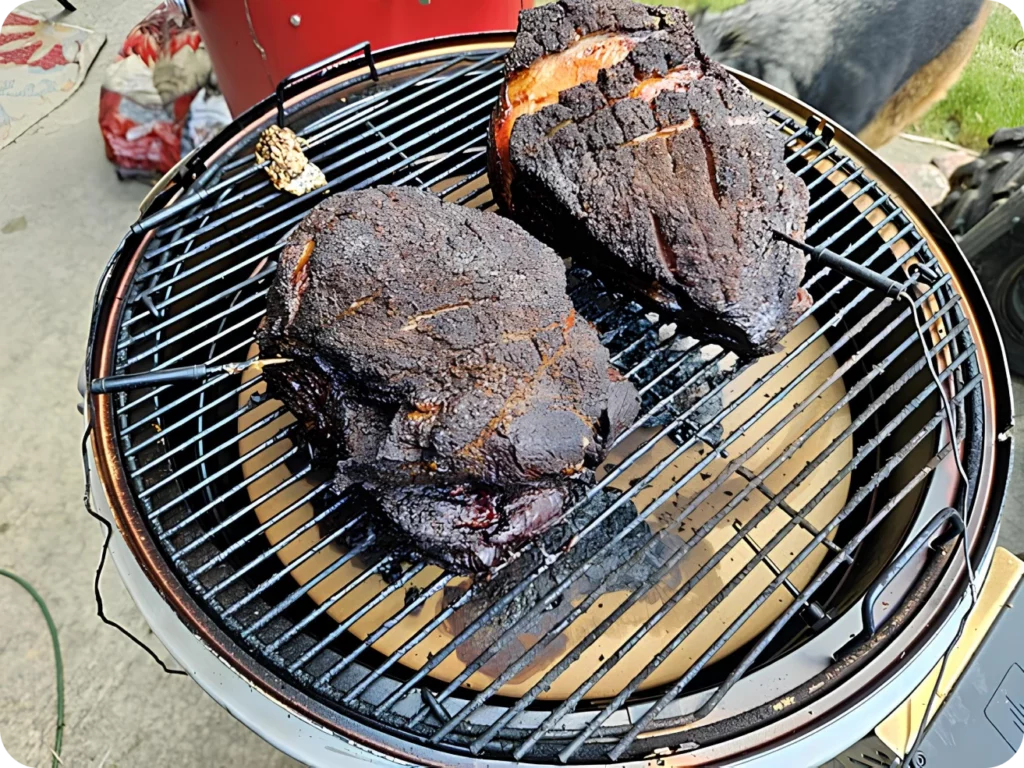
Other products that turn kettles into smokers often require the user to sacrifice grate space to function. The Ring sits around the rim of the kettle so that you have all the space you need.
MORE VOLUME + MORE INSULATION = MORE EFFICIENT
Get more out of each cook
Because of the Ring’s even air circulation and secure fit, your kettle becomes highly fuel efficient. Refuel less, grill more.
Charcoal Grill 22”
Premium Charcoal Grill 22”
Cooker Smoker 22”
Charcoal Grill 22”
NO NEED TO SAY GOODBYE
If you like it, then you should put a Ring on it.
Replacing your kettle grill with a professional smoker requires significant time and resources. With the Ring, you can get the same (or better) results at a fraction of the cost – without the teary goodbyes.
The Ring has been extensively tested with the kettle grills listed in this chart. If you don’t see your 22″ model on the list, that doesn’t necessarily mean the Ring won’t work for you. Kettle grills come in all shapes and sizes, so use best judgment with this list as a reference.
Get started with the FireBoard mobile app
1. Download the app for iOS or Android
You can download the FireBoard app for free, whether iOS or Android. Once downloaded, create your FireBoard account. You’ll use this account to track and manage your cooks both in the app as well as on our online dashboard.


2. Sync your device
In the mobile app, navigate to Settings > Add New Device. If your FireBoard device is turned on, it will become available to sync – just like any standard Bluetooth device pairing. Simply tap to sync, and you’re ready to go.
3. Start cooking
Now that you’ve synced your FireBoard device to your account, it’s time to test it in the field. For details on your specific device, check out our online Knowledge Base. It’s frequently updated with new features, setup and troubleshooting guides, device specifications, and more.
